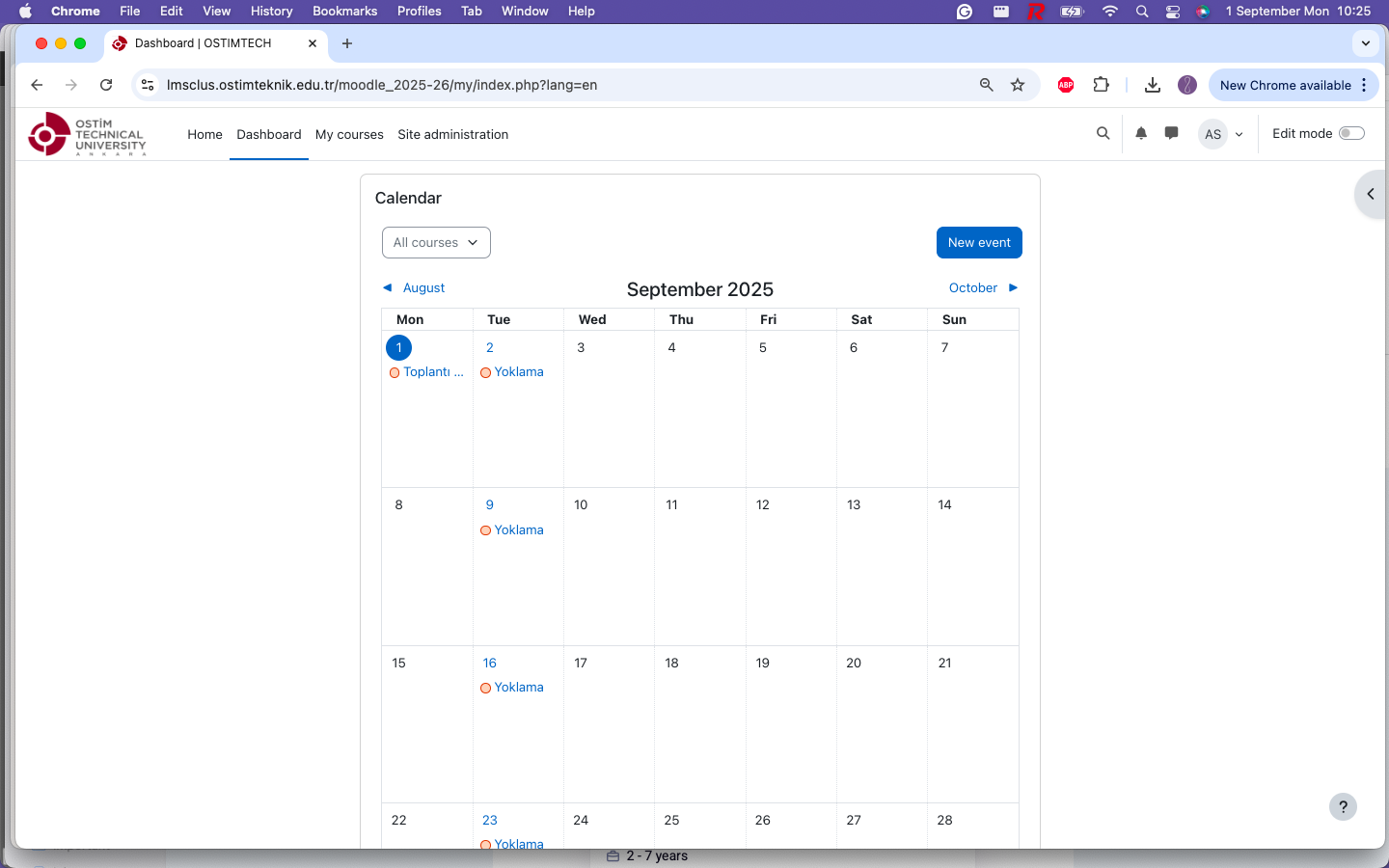
First-Time Login Guide
-
Before You Can Sign In
-
To use the OSTIMTECH Learning Management System (LMS),
you must have an institutional email address
(
@ostimteknik.edu.tr) provisioned by the Directorate of Information Management . -
If you already have one, in the browser you will use for
the LMS, go to
https://myaccount.microsoft.com
and sign in with your
@ostimteknik.edu.trMicrosoft account. You cannot access the LMS if another Microsoft account is active in that browser session. During this process, you will use your institutional email password and/or the Microsoft Authenticator app installed on the mobile phone associated with your institutional email. If you are unable to sign in to your Microsoft account with your@ostimteknik.edu.traddress, please contact the Directorate of Information Management . For courses opened in SIS (OBS) for Faculty Members / Instructors to be transferred to the LMS, the primary email address on their SIS (OBS) profile page must be set to their institutional@ostimteknik.edu.traddress.
-
To use the OSTIMTECH Learning Management System (LMS),
you must have an institutional email address
(
-
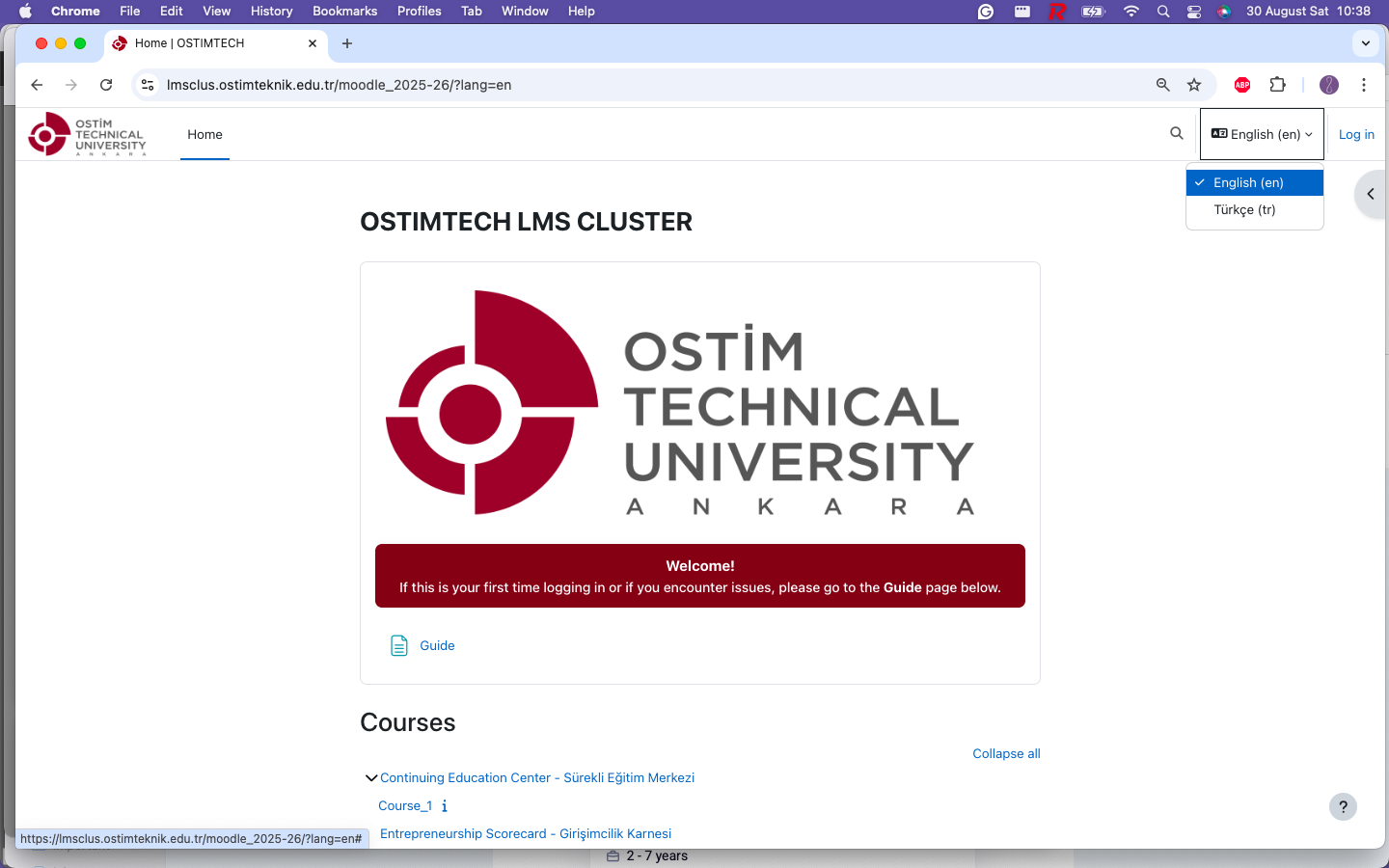
Choose Your Language (Before Sign-In)
From the top-right corner of the LMS Home page , select your preferred language.
-
Sign in
If your institutional email is ready and you are signed in to your
@ostimteknik.edu.trMicrosoft account in this browser, click Log in in the top-right corner of the Home page. Then, on the login page, click the OpenID Connect icon.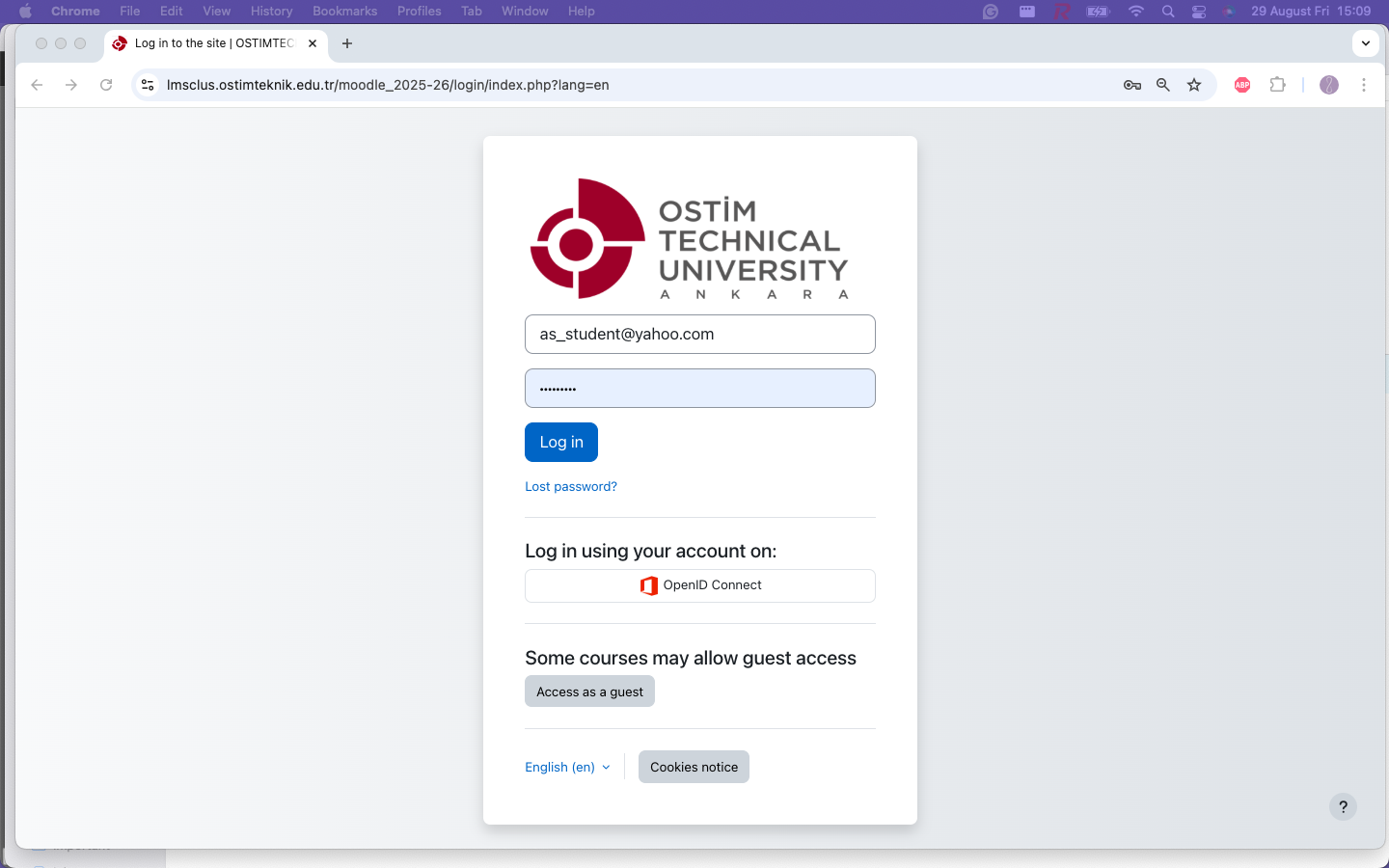
-
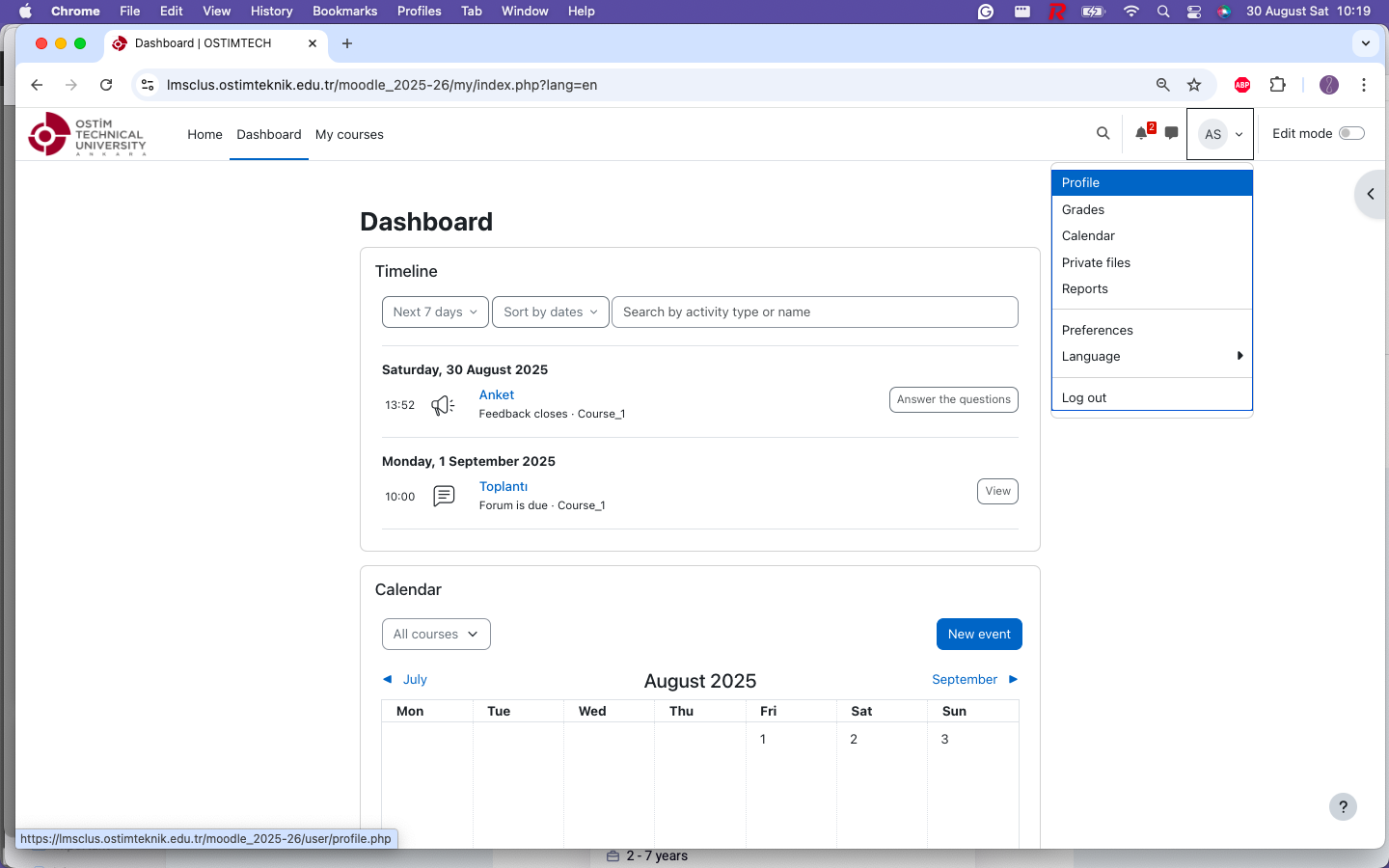
Update Your Profile
After signing in, on the Dashboard, click the chevron next to your initials at the top-right, then choose Profile → Edit profile. Add your photo and check your time zone and notification preferences. If you need to change the language later, use the Language option in the same initials menu.
-
Find Your Courses
Access your enrolled courses from the My courses tab after logging in, or go to Course categories and search by course code, for example
CENG 101.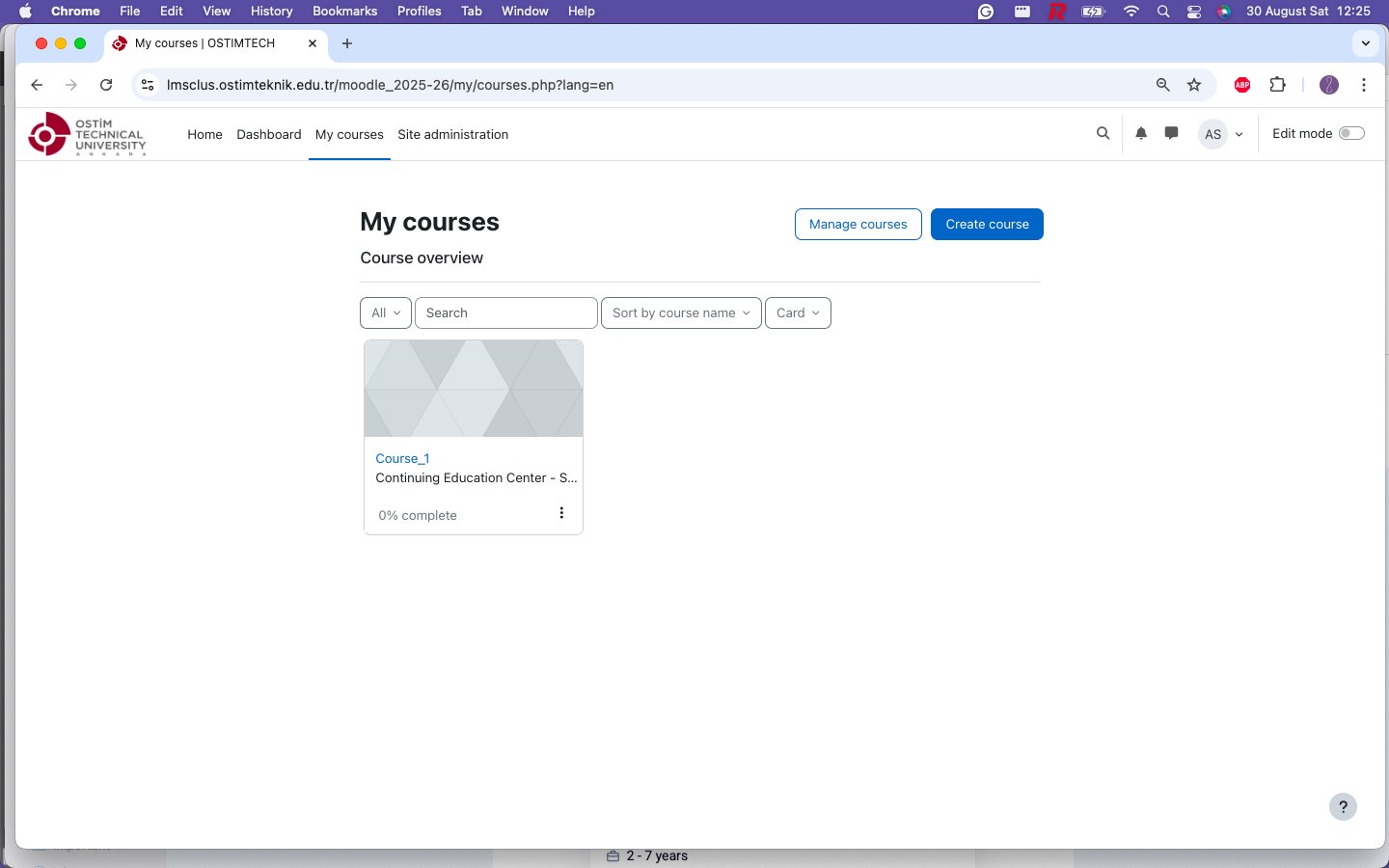
-
Materials & Activities
Follow announcements, weekly content, assignments and quizzes. Don’t forget to check the Calendar.